reMarkable to Obsidian Sync: The Complete Guide
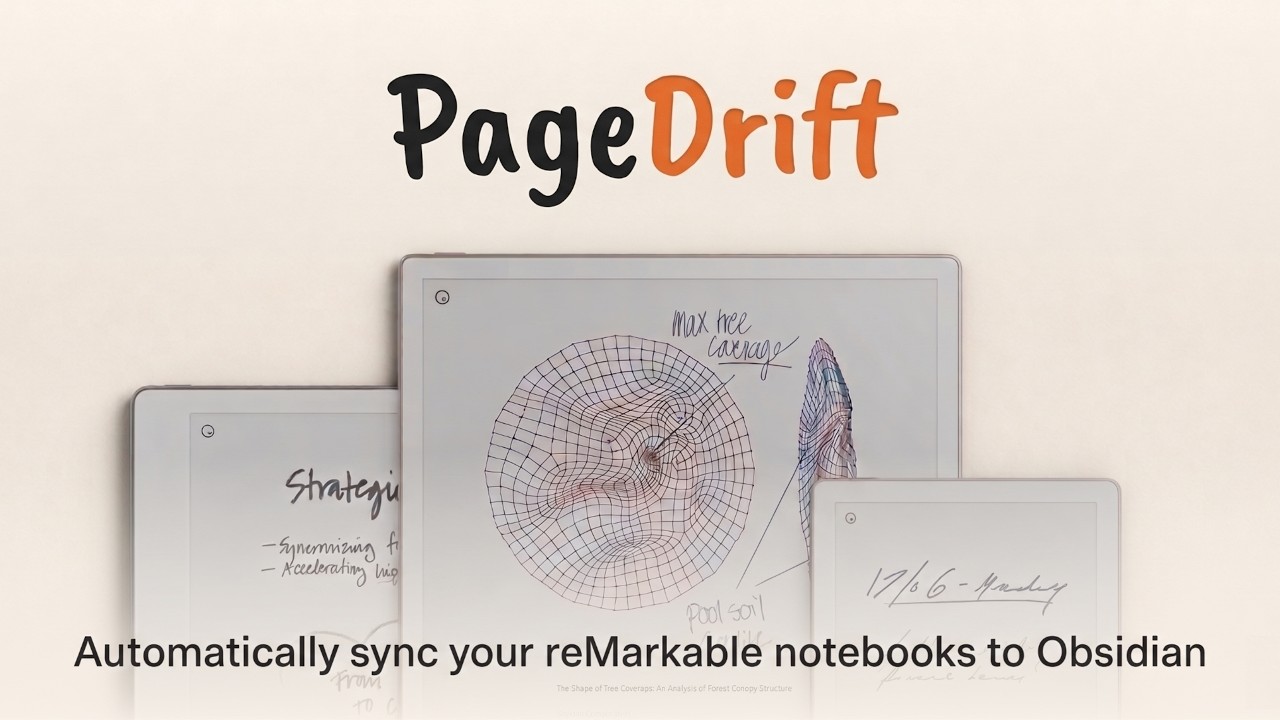
If you're looking for a way to automatically sync some or all of your reMarkable notebooks to Obsidian with zero tech setup, this guide is for you! (Google Drive, Notion, OneNote and more integrations are coming soon.)
 ▶
▶
Watch the two-minute demo of PageDrift in action.
Why sync your reMarkable notes to Obsidian?
If you're anything like me, you've probably wanted to create automations and integrations around your notebooks, or just have them in a place that can be accessed from anywhere. There are now some super cool things you can do.
Your handwriting joins your knowledge graph. A synced notebook is a normal Obsidian note. You can link to it from other notes, tag it, drop it into a daily note, and find it in search alongside everything else you know. A meeting sketch from March stops being a page buried on a device and becomes something your future self can actually reach.
You always have the latest version. Exported files go stale the moment you pick up the pen again. With sync, editing a page on the tablet means the same note in your vault shows the new version. No duplicates, and no guessing which copy is current.
The old ways of getting notes off a reMarkable
Until now, the options were all versions of manual labor. You could email yourself PDFs one document at a time from the tablet. You could dig files out over a USB cable. Or you could go down the tinkerer's path that we did: a lot of guides talk about enabling developer mode, connecting over SSH, and maintaining scripts that break when the tablet updates.
All of these share the same two flaws: they export one snapshot of one document, and they put the burden on you to repeat the process every time anything changes.
PageDrift takes a different approach. It connects to your reMarkable account — the same cloud your tablet already syncs to over Wi-Fi — so it can see your whole library at once and fetch exactly what changed. Nothing ever plugs into the tablet, and developer mode stays off.
How to set up PageDrift, step by step
1Install the desktop app
Download PageDrift from pagedriftsync.com — there are builds for Apple Silicon Macs, Intel Macs, and Windows. Open the app and a short tutorial video walks you through everything below.
2Sign in to reMarkable, once
Click Sign in to your reMarkable account. PageDrift opens a browser window on reMarkable's own website, and you sign in exactly as you normally would (Google sign-in works too). It takes about thirty seconds, PageDrift never sees your password, and your sign-in is stored only on your computer.
You won't be doing this again each time: PageDrift quietly keeps your session alive in the background, so it stays signed in even if you don't open the app for weeks. You may occasionally need to sign back in, but it should be rare.
3Install the Obsidian plugin with one click
In the desktop app, click Install plugin. PageDrift finds your Obsidian vaults automatically and copies its plugin into the one you choose. Then, in Obsidian, go to Settings → Community plugins and enable PageDrift. That's the last piece of setup.
The plugin even keeps itself up to date from then on! When the desktop app updates, the plugin updates with it, no reinstalling.
4Import your library
The first time you use the plugin, PageDrift offers to import everything from your reMarkable in one run. You get a checklist of your full library. Everything is selected by default, with a toggle to skip books and imported PDFs if you only want your own notebooks. If you only want to import a few documents, that's fine too. Just select the ones you want! There is also a progress log as it works.
When it finishes, your vault contains a folder (called "reMarkable" by default) that mirrors your tablet's folder structure exactly. Every notebook is a note, in the same place you'd find it on the device. No configuration needed!
Large libraries take a while on the first run, and big notebooks can take several minutes each. The import is safe to rerun anytime: anything already up to date is skipped automatically, so a rerun only picks up what's new, changed, or failed.
5Keep it in sync with one click
From here on, this is the whole workflow: write on your tablet, then click the Sync reMarkable updates button in Obsidian (or download from the app). PageDrift checks what actually changed on the tablet and refreshes only those documents. If nothing changed, it tells you everything's already up to date. You can also run sync from Obsidian's command palette, or assign it a hotkey if you want it on a keystroke.
Prefer not to press anything? There's an optional auto-update setting that re-fetches your tablet edits automatically whenever the PageDrift panel refreshes.
What your notes look like in Obsidian
Each reMarkable document becomes a Markdown note with its handwritten pages embedded as crisp page images by default, or as a single PDF if you prefer (there's a setting for it). Your handwriting arrives looking exactly as it does on the tablet.
A few thoughtful details worth knowing:
- Your writing is protected. The embedded pages sit inside a marked section of the note. On each sync, PageDrift refreshes only that section — anything you've typed above or below it is never touched.
- Renames just work. Rename a notebook on the tablet and the note in your vault renames to match, with all your Obsidian links still working. Move or rename a synced note inside your vault and PageDrift keeps track instead of creating a duplicate.
- The mirrored folders stay clean. Page images are tucked away in an assets folder, so browsing your synced notes feels just like browsing the tablet — one item per document.
- A sidebar panel gives you the full library. A PageDrift panel in Obsidian's sidebar shows your whole reMarkable library, flags documents you've edited on the tablet since importing, and lets you pull in individual documents on demand.
Private by design
Your notes never touch PageDrift's servers. There aren't any to touch, actually. Everything the app downloads is saved directly to your own computer, your reMarkable sign-in never leaves your machine, and PageDrift keeps no record of what documents you sync or when. The full details are in the privacy policy, and the short version is exactly what you'd hope: your handwriting stays yours.
PageDrift is also strictly read-only toward your tablet: it never uploads, changes, or deletes anything in your reMarkable account.
Frequently asked questions
Does PageDrift convert handwriting to text?
No — your pages arrive as faithful images of exactly what you wrote, preserving every sketch, diagram, and margin note. Because each document is a regular Markdown note, you can type your own searchable summary or keywords alongside the pages.
Do I need a cable or developer mode?
No. PageDrift reads from your reMarkable account's cloud sync, the same one the tablet uses over Wi-Fi. No cables, no SSH, no hacks — and nothing on the tablet to break when it updates.
Which reMarkable tablets work?
Any reMarkable that syncs to a reMarkable account. If a document appears in reMarkable's own web library, PageDrift can bring it into your vault.
Can PageDrift mess up my reMarkable?
No. It only ever reads. Nothing is uploaded to or changed on your tablet or your reMarkable account. Some people call this uni-directional.
What does it cost?
PageDrift is in open beta and free for early users. Grab it at pagedriftsync.com.
Does it work on both Mac and Windows?
Yes! Mac (Apple Silicon and Intel) and Windows, and the app keeps itself updated automatically on both.
Ready to try it?
PageDrift is in open beta — free for early users, on Mac and Windows.
Get early access now →We'll email you an invite. No spam, ever.